What if you could organise your tasks by due date, deadlines, projects, and checklists in a clean but beautiful app?
I used to have a problem – at work, my peers or boss would request me “Do X”, and I’d nod along. I’d rely on my memory to do the thing. But there’s a saying – your mind is good at thinking – not good at storing stuff. The way I’d capture tasks/ideas a year back would be – Apple Notes, Slack Personal DM 🫢
Anything that needs to do, an idea, a task, etc. should be captured somewhere that isn’t your brain. This is also popularised by Productivity Gurus like Tiago Forte and Ali Abdaal.
Now I tried Todoist a few years back but the app wasn’t something I continued using beyond a week. I also tried Apple Reminders but it was a bit too minimal for me. Then I discovered Things 3 back in October 2022.
What is Things 3?
My minimal description would be – task manager. Alternative to Todoist, Apple Reminders and such. It’s the third iteration so hence the 3.
It’s available exclusively on Apple platforms like Mac OS, iOS, WatchOS and iPad OS.
Why do I like it? The review starts now.
Design
The first thing about Things 3 is how neatly it fits into the Apple Ecosystem. Using the app on any device feels like the app was made by the Apple team themselves. It has received the Apple Design Award, Editor’s Choice and a couple of other credits.
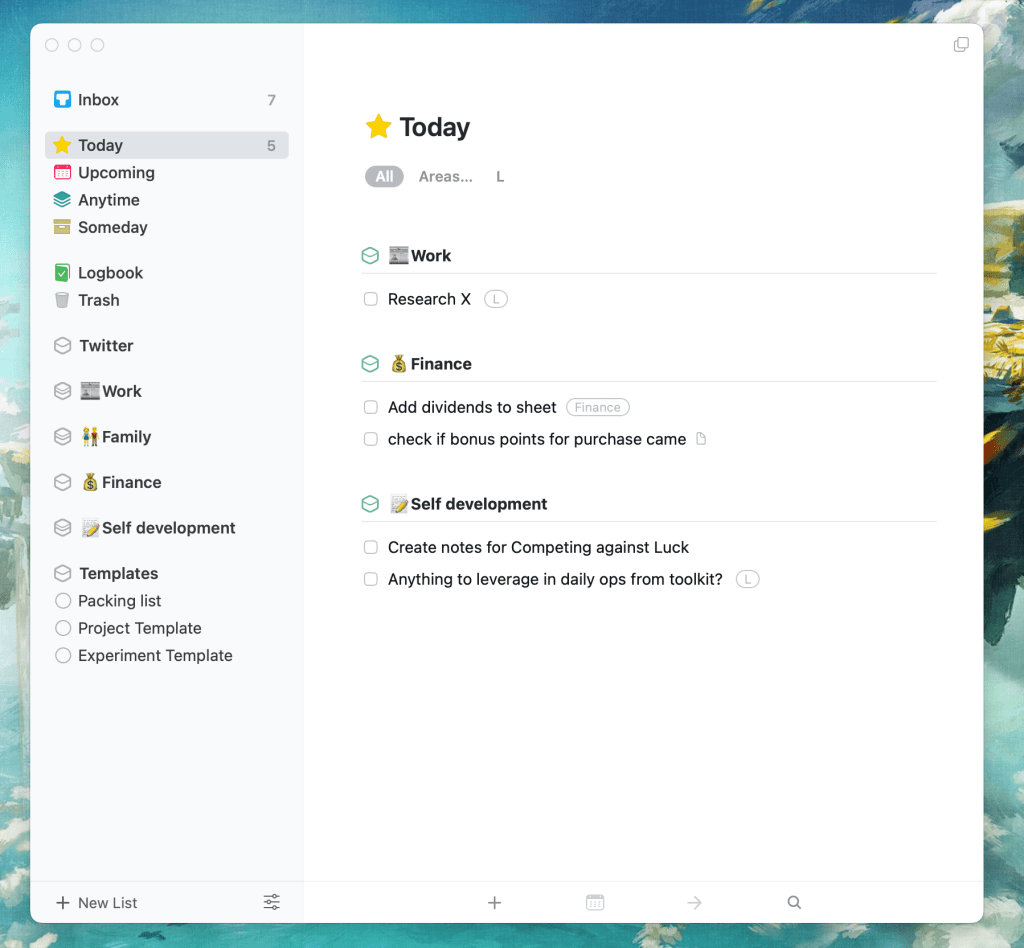
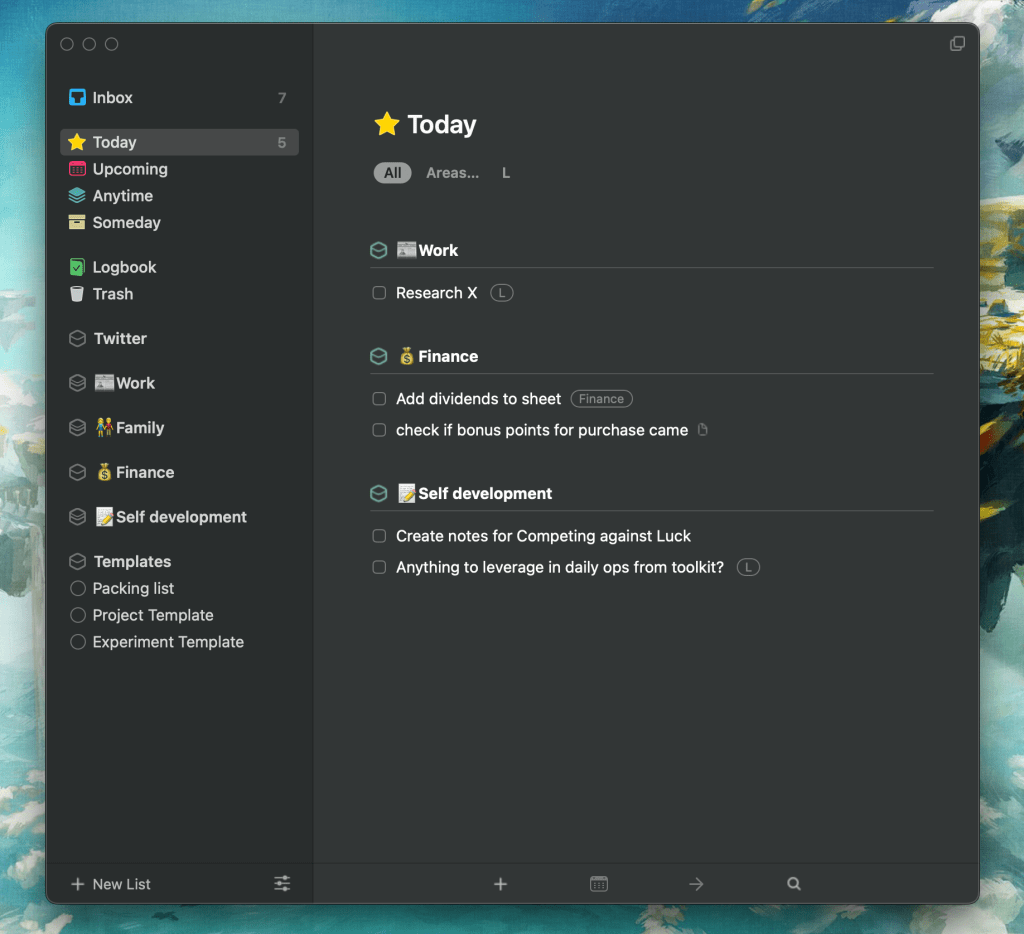
The Mac App is the one which gets heavy usage from me. The mobile app serves as a companion when my laptop isn’t around.
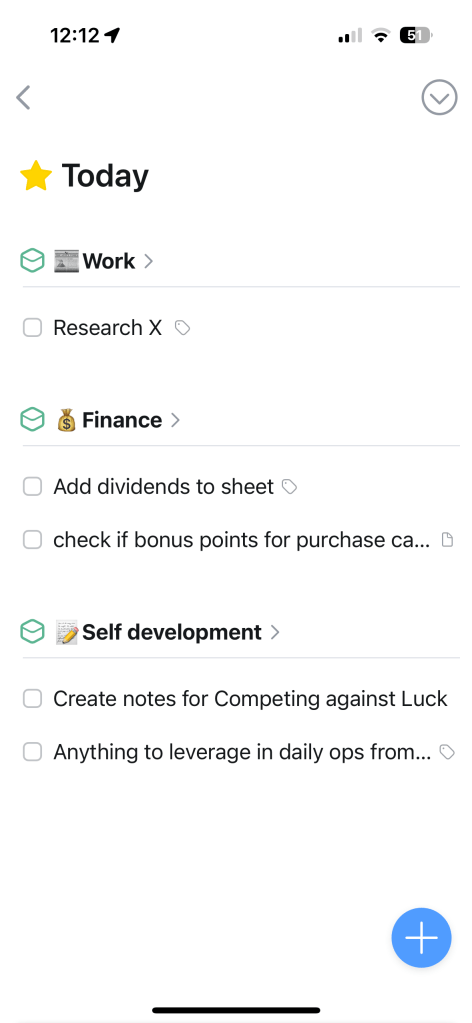
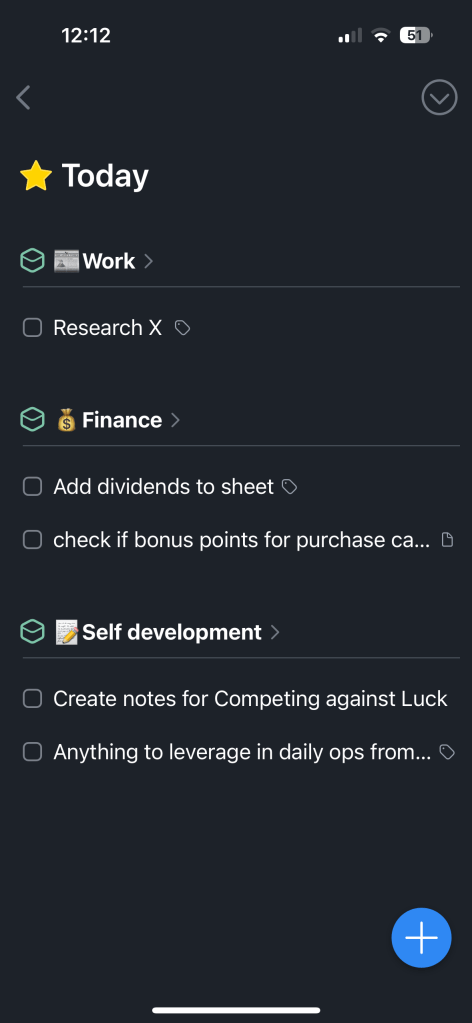
The mobile app looks great too. I tend to use it for work tasks if my laptop isn’t around or for my family or personal tasks.
One part of why the app’s design is charming is the clean animations. You’ll see more of these in the videos below. I don’t mind using it in either light or dark mode, my devices tend to switch between light or dark automatically.
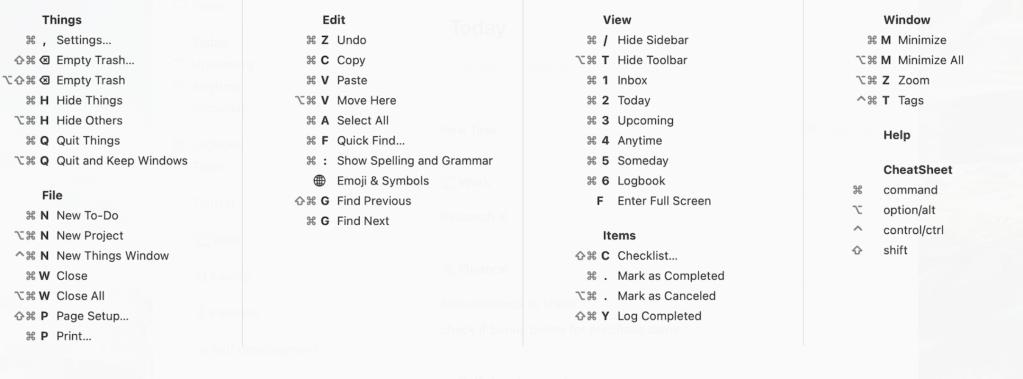
Also, the app comes with a lot of keyboard shortcuts which makes workflows faster.
Task Organisation
Essentially you can think of the hierarchy of tasks like this:
Area > Project > Task
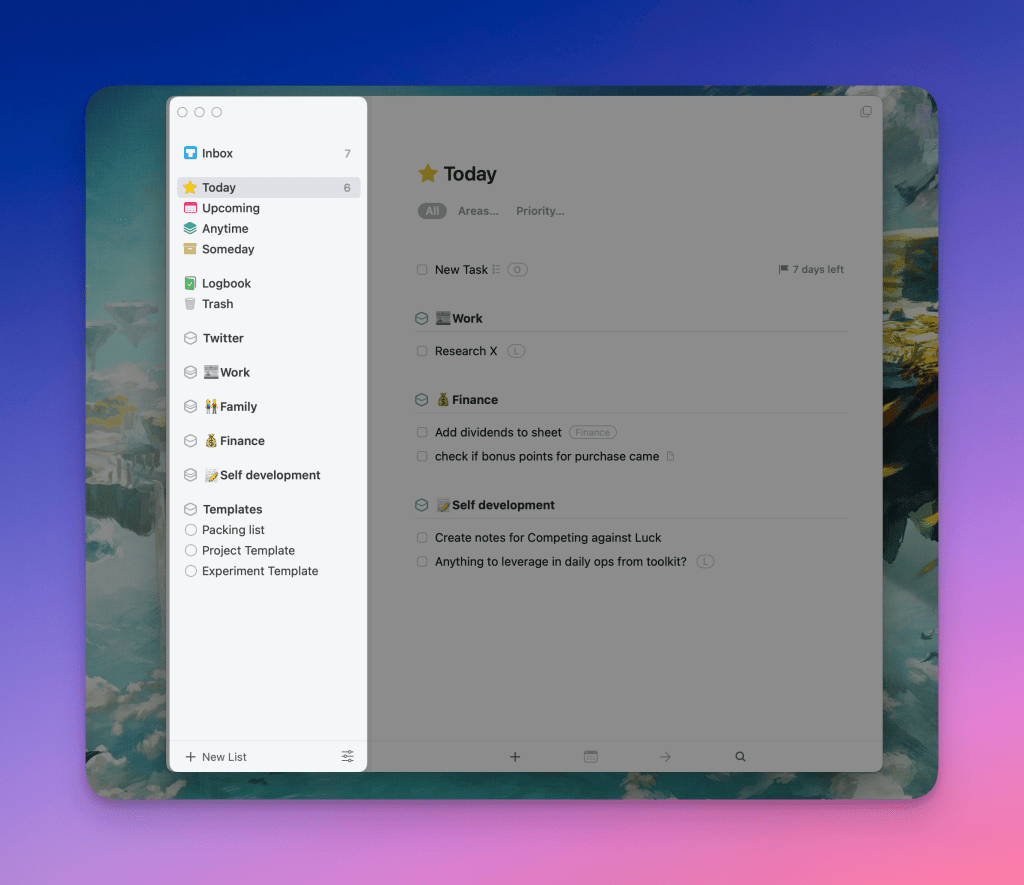
You can see my areas are: Twitter, Work, Family, Self Development and Templates. My family area could have a project like “Plan vacation” and that could have tasks like “Research City”, “Shortlist hotels”, etc. Or tasks can simply reside in the area “Family” and don’t need to be in a project. What you see in the screenshot above are tasks that aren’t part of any project.
Both areas and projects are optional. So for instance I can have a task called “Replace Car Tyres” that doesn’t need to be in any of my defined areas but can still have a deadline, due date etc. Or I could have a task like “Book Flight Tickets” which could be in a project called “Thailand Vacation” within the Family area.
Sections
You have sections defined based on due dates like Today, Upcoming, Anytime or Someday. Today is the MVP – as this gives you clear priorities of tasks to work on today. Once you organise your tasks with dates and deadlines, “today” is where you wanna spend your day.
Upcoming gives you a view of all your upcoming tasks and calendar events.
Anytime acts as a section where you can pick tasks that don’t have a due date and can be picked … anytime. New tasks created that don’t have a due date are automatically added anytime.
Tasks that you don’t want to assign a due date to but are unsure of ever picking up can be tagged as “Someday”. A weekly or monthly scan can help you organise these with dates.
My workflow is – at the start of the day check my Today page for tasks that I had decided to pick today. Tasks automatically appear in the Today section if you had attached today’s date. If you don’t complete the task the same day, they get carried forward to the next day’s “today”.
Creating tasks, projects & more
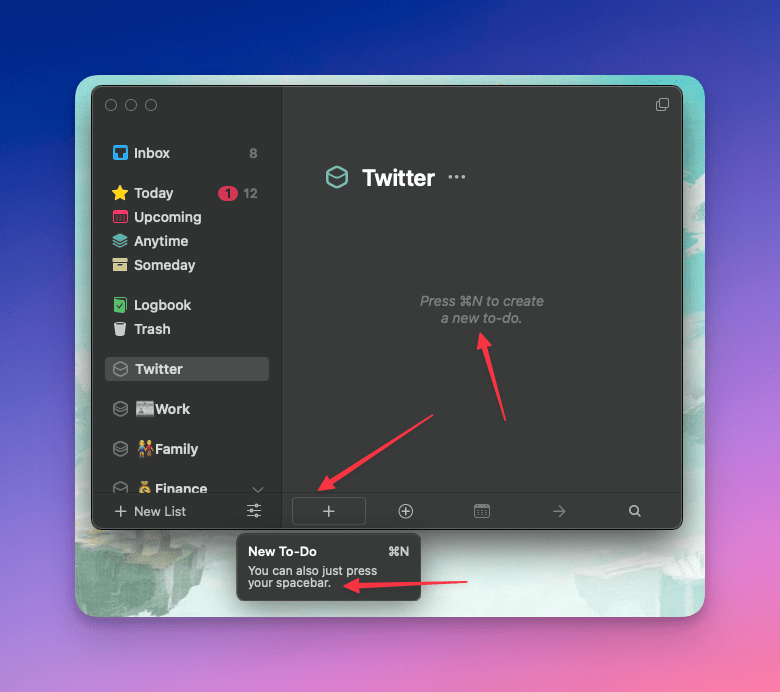
Create a task in the below ways:
1) Open things and hit space – the task is created in the area you’re looking at
2) Press CMD + N
3) Use the + button from the bottom icons
Alternatively, the way I log tasks is by hitting the CTRL^ + Space shortcut – this brings up a minimal prompt where you can fill out your to-do. It offers all the features of task creation but in a clean nice window. I use this shortcut the most. From discussions in Zoom calls if any tasks need to be done, instead of opening different apps and figuring out where to note my task down, I use this shortcut and immediately note it down.
I’m also using different shortcuts in the above video like setting due dates, deadlines, projects and adding tags. I’ve never organised tasks this quickly into projects with these many details with any other tool. They also offer an alternative shortcut where you can use CTRL + OPTION + SPACE and it captures where you are as part of the to-do: for example, if you do this with a web page open, it captures the web URL for your to-do.
In the above video you can see how I can create projects within my area “pankajkara.com”, add headlines to organise to-dos and even convert to-dos into projects.
I have to mention this – shortcuts are key. They really make it fast to organise your To-dos once you pick them. I think they’re quite intuitive too, some of them have the first letter match the shortcut key. Some samples are below:
CMD + S -> Start Date
CMD + Shift + D -> Deadline
CMD + Shift + M -> Move To-do
CMD + Shift + T -> Tags
By the way, if you are enjoying this app review make sure to follow me on Twitter: @PankajKara.
Other Features
Search
Searching for to-dos across projects is easy, simply start typing. Yup, just start typing.
Sync
The app supports sync between your different devices. I’ve never really faced an issue using this on either device.
App
While I covered the Mac App features, shortcuts etc. The mobile app offers a similar experience and the design is stellar there too. But as a power user, I’d mostly rely on the Mac App for heavy organisation, especially thanks to shortcuts. The Mobile app is a nice companion app for me.
Widgets
There is support for widgets on both iOS and Mac. I use the iOS widgets to get a view of my “Today” tasks.
Email
A cool feature is the ability to mail yourself. The subject of the mail is the to-do title and the body becomes the note.
Repeating to-dos
I have some to-dos set as recurring so I don’t need to create them every time. These are handy for tasks you repeat yet want to keep track of. I have recurring reminders for – dividend tracking, insurance payments, and others.
Calendar
You can check your calendar events from Things 3, however, no organisation for calendar events is available.
Share sheet
Find an interesting website or tweet on your iPhone or Mac? Share it to Things 3.
Verdict
I have been using Things 3 for the last 8~ months and it is essentially a great task tracker on items from work, family and personal development. My reliance on scattered Apple notes, Slack messages sent to myself and other ad-hoc task creation has been eliminated.
What I love the most:
- Design – Both light and dark modes look great on either platform. Clean animations and minimal design. Just 🤌🏻 brilliant.
- Sync – Sync works great between the Mac and iOS app. This is important from app reliability POV.
- Shortcuts – These enable me to really blaze with to-do creation and organisation. Especially the quick entry shortcuts.
- Organisation – Division of to-dos into areas and projects makes it easy to organise things well if you’re into it. I’ve created template projects that I clone to reuse over and over such as packing lists.
- Due-date separate from deadline – This is a concept many task managers don’t really get right. While a task might have a deadline of let’s say 31st August, you want to start working on it from the 10th. This is possible when you have both a due date and a deadline. In other apps, it’s just one date you can attach so it doesn’t work as well.
What I want to see improvements in:
- Repeating to-dos – The UX to switch these off wasn’t intuitive.
- Things 4 – Because Things 3 is a purchase, not a subscription, you’d have to buy Things 4 whenever that is released. I think they discount it for older buyers but IMO this still sucks a little bit. It’s the con of it not being a subscription-based model. This makes purchasing tricky for new buyers because there is no revealed timeline for Things 4.
- Usage of NLP and AI – While I like there is some NLP (natural language processing) when adding due dates, I feel there is more potential to use AI here. For example, tasks which are added with quick entry shortcuts by default go to Inbox (you can change the area). What if Things 3 could automatically organise these to-dos into appropriate areas/projects? An alternate example I can think of is how well Fantastical uses NLP.
- No demo for mobile app.
- No Gamification – Gamification might be a gimmick to many but also acts as a motivation booster. This could be added as an optional feature for those who choose to keep it. Todoist offers Karma for each checked task.
- The desktop app can cancel tasks, but the mobile app does not. You can only delete or complete the to-dos in the mobile app. Sometimes it makes sense to cancel to-dos rather than delete. For instance, I create a to-do on the Mac app and realise later that the to-do can’t be done or doesn’t need to be done, I add a note to the to-do and mark it cancelled.
Things 3 comes as a one-time purchase. USD49.99 for Mac, USD19.99 for iPad and USD9.99 for iOS. There is a demo available for the Mac but not for other devices. I highly recommend trying this free demo out. If you like it, you can consider purchasing it.
If you enjoyed this review, be sure to hit the like button and follow me on Twitter: @PankajKara. Feel free to tweet me with any questions and thanks for reading.

 Pankaj Kara