
I discovered an ultimate calendar sidekick Dato. It allows me to quickly join zoom calls, look at multiple time zones, plan meetings and much more. The app is available for Mac OS.
What if I told you, you could join a Zoom meeting (or google meet) from anywhere in two keystrokes – CMD + J.
Dato App has a multitude of features that helps in optimising your workflow and saving time. Once you have synced it with your calendar you can:
Join a meeting in two keystrokes
You can modify the CMD + J shortcut but essentially if Dato has a calendar event, that has a meeting link, then two keys will open your meeting in your default browser. This avoids going to the calendar & clicking the event and eases the workflow
Join a meeting via notification
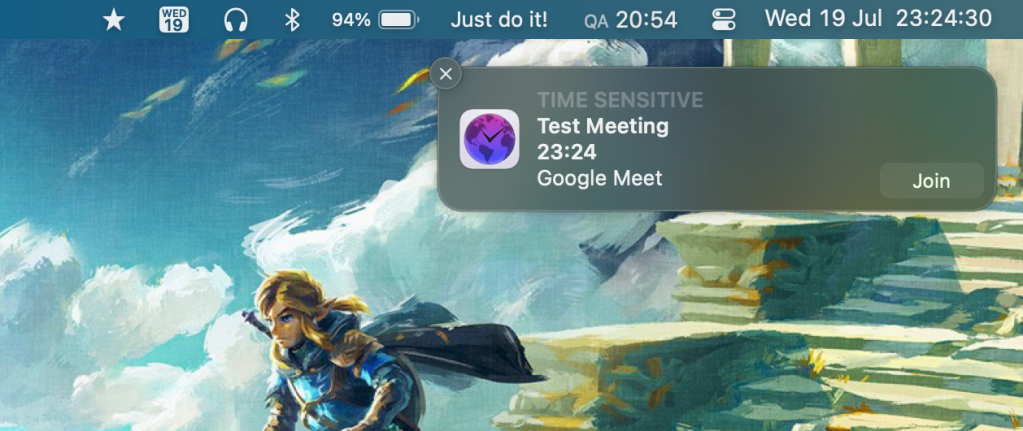
If you have notifications switched on, then you also get a join button on the notification itself (similar to cron) tapping which again directly opens your meeting.
Full-screen reminder for meetings
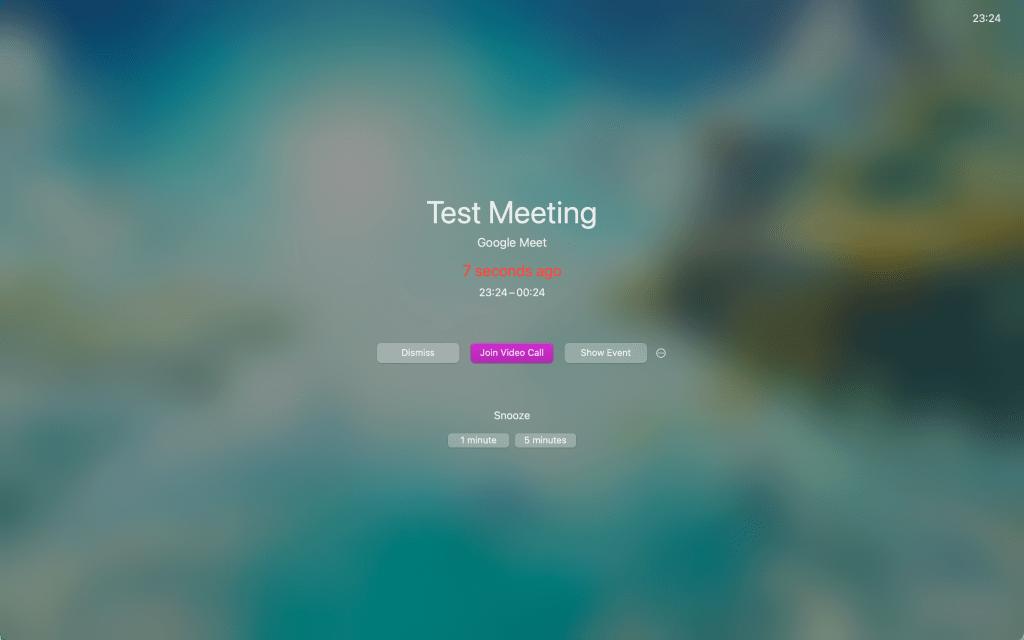
What if you’re someone who keeps notifications off or really really needs a reminder about a meeting? Full-screen notifications with a join button. No excuses to “forget” meetings anymore 😉.
Add more time zones to your menu bar

By default, Mac only allows you to add one time zone to your activity bar. With Dato, you can add more. This is useful when your time is working across time zones.
View your calendar, events and times across zones via the menu bar
The Dato app resides in the menu bar. Tapping the Dato icon gives you a monthly calendar, events, time zones and time travel. You can also quickly open it with a shortcut – CMD + Option + D.
Within the Dato view itself you get two options to join meetings- the Join button on top for any current meeting. Or hovering on the event, you can see event details and a join button.
Time travel
If you’re working across time zones, sometimes it’s good to be mindful of the time your scheduled meeting will be for your attendees. But how to calculate this quickly?
You can choose some time zones you always want to see in Dato – I have four, then simply drag the bar to see the time change in real time across all time zones. This is super handy to plan meetings which have participants across time zones.
Other features
There are two calculators to help calculate 1) What time/date it would be X years/months/weeks/days/hours from now or 2) Interval between dates.
You can create meeting events from Dato itself or your normal workflow and it appears in Dato.
There are other cool features as well, but I wanted to focus on some of the power ones I use daily.
Verdict
I’ve been using Dato for over 3 months now and it has brought great workflow efficiency. I’m working remotely since the last 4 years. I join at least 3-4 meetings a day. Across a year that is 700~ meetings. So when I save the effort of joining meetings 700 times, I’ve saved a lot of time, probably. These small efficiencies compound over time.
It’s also convenient to get a quick view of the day opening Dato with the keyboard shortcut CMD + Option + D. Alternatively if I know there is a meeting I need to join which has started, I can simply hit CMD + J to join it.
The reason I even discovered Dato was I was missing the notification from the Cron app which has a join button. That really simplified my earlier workflow. Before this, I would simply get a calendar notification which doesn’t really help as it takes me back to the calendar. Cron unfortunately doesn’t support Microsoft Exchange, which I needed to use with my current work. Hence, I parted ways with Cron and finally discovered Dato.
Dato offers a lot of customization with shortcuts, timezones, calendars and so on. In my review you can see I have added a permanent time zone to the menu bar, and four time zones in Dato itself.
Dato is only available on Mac App Store. It costs $7.99. I am using it along with a Setapp membership which is $9.99 monthly and gives me Dato and many other apps. Sindre also offers a free trial to Dato on his website.
Improvements I’d like to see:
- Bug fix: Intermittently full-screen meeting preview doesn’t work
- Bug fix: Intermittently notifications for meetings don’t work
If you enjoyed this review, be sure to hit the like button and follow me on Twitter. Feel free to ask any questions about the app.
Here’s a link to the Dato app. You can also check out other apps by Sindre Sorhus here.

 Pankaj Kara