
I’ve been digitally journaling for 24 days – this has become a part of the day I want to diligently complete before the day ends. I want to review Day One but also answer some questions about journaling and why one should try it. If you already know what journaling is, then skip this section.
Journaling and Day One
What is the Day One App?
Day One App allows you to create journal entries about anything you want. You could write about your day, daily affirmations, gratefulness or anything you want.
Why should one journal?
Instead of making up things you read, I’m gonna borrow a snippet from the University of Rochester:
“One of the ways to deal with any overwhelming emotion is to find a healthy way to express yourself. This makes a journal a helpful tool for managing your mental health. Journaling can help you: Manage anxiety, Reduce stress, and Cope with depression”
I do urge you to view that link from the University of Rochester as well as do your own research about the advantages of journaling.
Personally, I find journaling a bit therapeutic and peaceful. There’s also a sense of delight in knowing you can backtrack what you were doing x days, weeks, months or years ago. It’s how Apple reminds you with Photos or Videos about what you were doing in the past on that date but Day one reminds you of the journal entries you may have taken in the past.
Why should one maintain a digital journal rather than a physical one?
I am actually leaning toward advocacy of maintaining a journal – in any format. However, there are advantages to digital journals. No physical space is needed, easy to scan past entries, data synced in the cloud, cross-device usage, etc.
The two significant advantages to me are: I do not need to maintain a physical journal book and digital journals are easy to scan for past memories and moments.
Is digital journaling popular?
It very much is- Day One was founded in 2011 and is still one of the most popular apps. This space may have become so ludicrous that even Apple announced its own journaling app for iOS 17, coming later this year.
Jumping into the review now.
Day One Design
Overall, the app has a great design. I found it easier to use on iOS compared to Android (The templates feature seemed more hidden in Android). You even get options to customise the journal colour, app icon colour, conceal, etc. I picked the Aqua Blue Color.
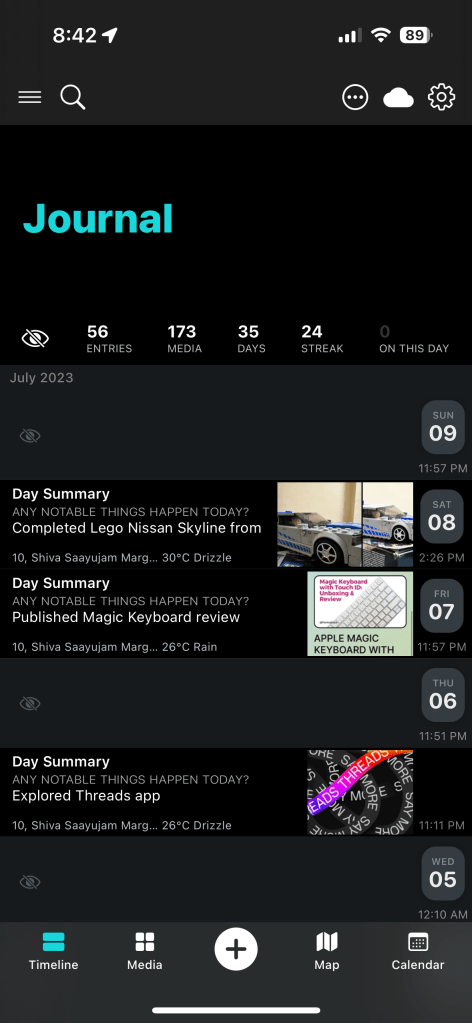
This is the timeline view for my primary journal, where I record day summaries every day. I switched on the app’s conceal feature to mask the ones I didn’t want to be showcased in the screenshot. You can see quite a lot of data in each entry- The category (Day Summary), Title, portion of body, location, date/time stamp any photos and even weather 🤯. It’s a bit of information overload but, you get used to it. The photos really add value and bring life to your entries. This also makes finding something in the timeline easier.
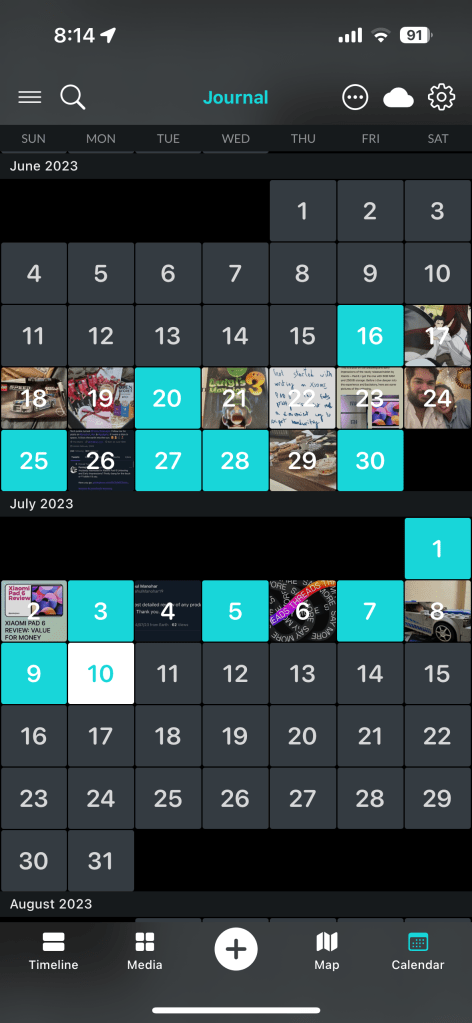
I find this view awesome! Just scroll thru your calendar on Day One, and you’ll see photos overlapped on dates. The ones where you didn’t add any photos are simply the date. It’s easy to find events via photo rather than date if you make your journal entries rich.
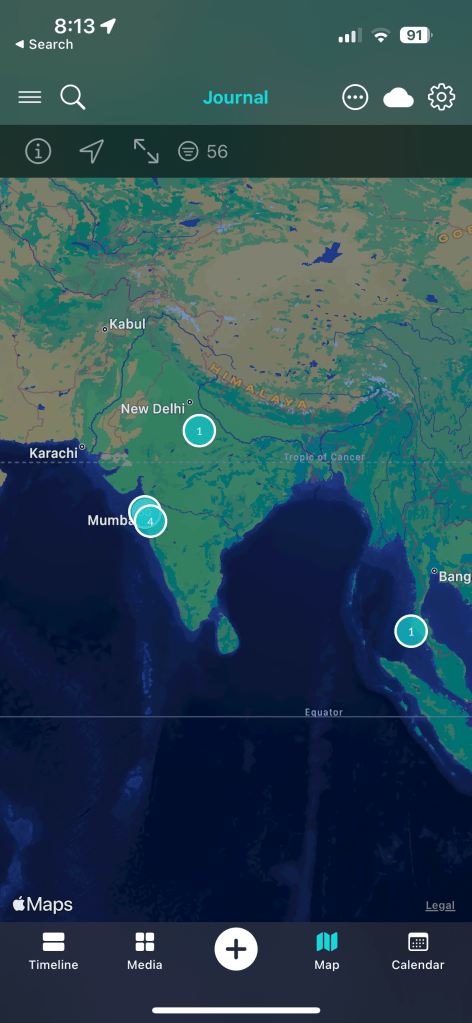
I had backfilled some of our trips and you can see the one entry around Thailand. You have the option to automatically capture location from photos rather than point of entry creation. This Map view is a feature I often use with Apple Photos but, I think Day One is even better cuz your entry would have your thoughts, metadata, weather, photos etc.
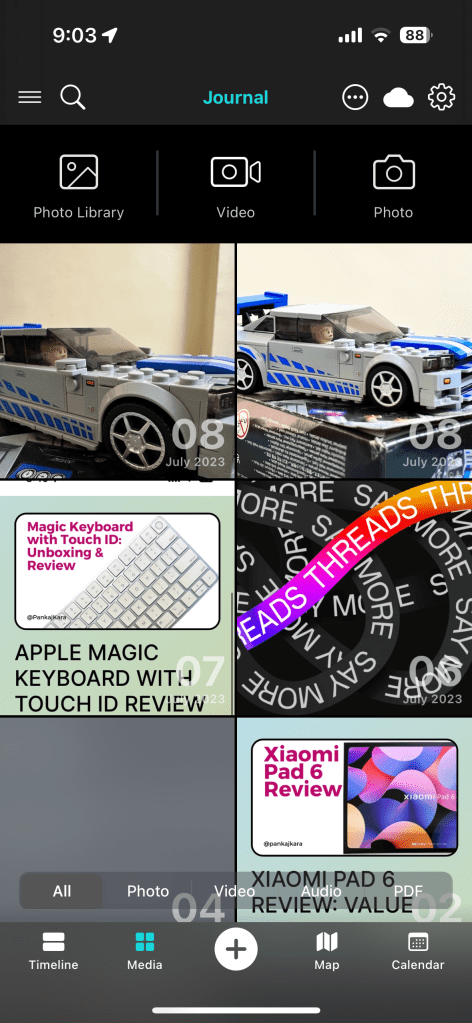
Lastly, you have a view where you can simply see the photos or other media you recorded each day in your journal entries. I don’t use this view much.
I find the Mac and Android designs not as great as iOS. There are definitely improvements that can be made to other platforms, especially navigation.
Creating & Viewing Journal Entries
Okay – the short way for me to answer this is: you have ultimate flexibility on what and how you want to create your journal entries.
Text? Yes
Voice? Yes
Voice transcribed? Yes (up to 10 mins of audio can be transcribed)
Photos? Yes
Videos? Yes
There is one thing which saves me time in recording daily summaries. I use templates.
As you can see, the sections are formatted and sorted out. I just need to fill in my thoughts for each section and I’m done. This saves me time from formatting my entries and is super useful. Using templates also reduces my friction or procrastination to create an entry as the layout is clean.
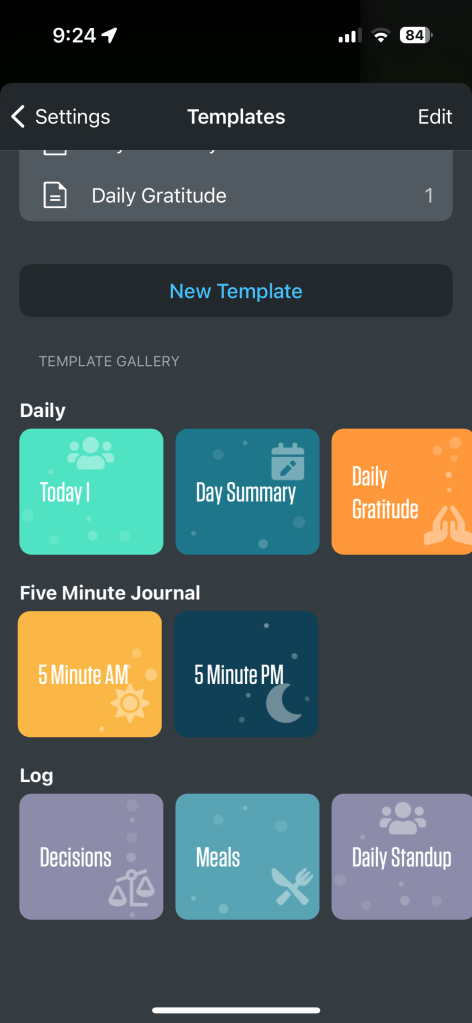
You get a couple of templates right off the bat to use should you choose (Product Pankaj: Cold start solved nicely). I mostly use one template which is Day Summary – every day. I also have three other journals for tracking some other stuff.
Other Features
Okay, the app has too many features and me covering everything would make it a long review, so in this section, I cover some interesting things that I’ve discovered and felt like sharing.
Apple Health
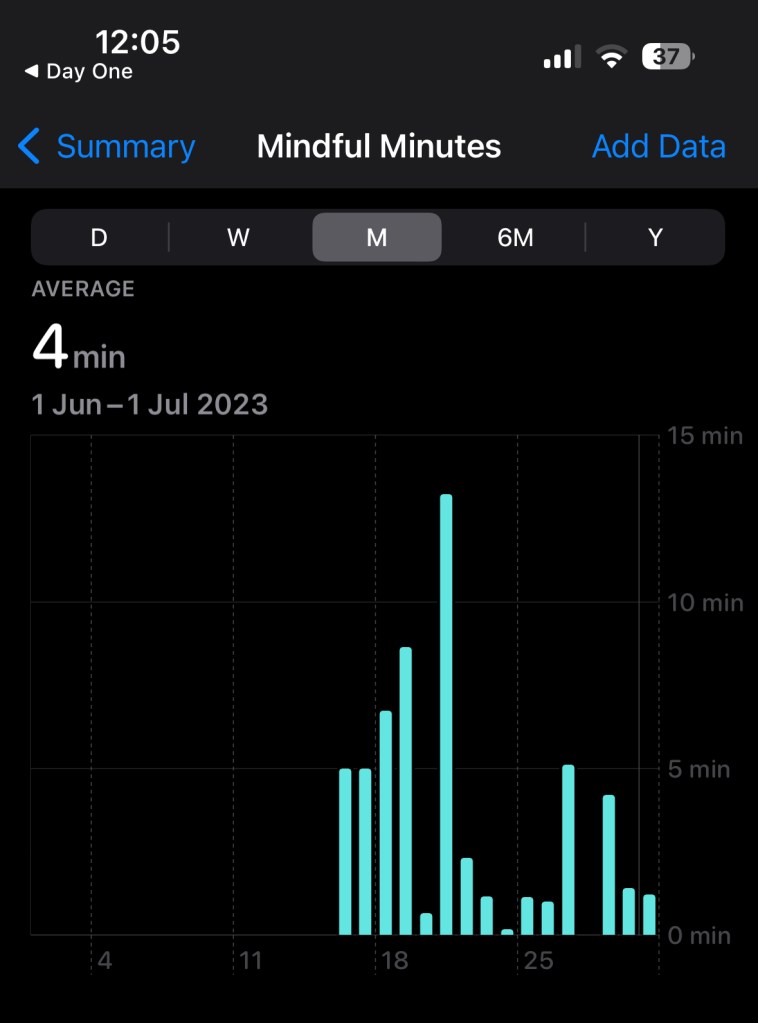
Day One has an integration with Apple Health, where the time spent creating journal entries is logged as “Mindful Minutes” in Apple Health. The peak you see is when I got obsessed and wanted to backfill a bunch of my holidays 😄.
Search by tags, entries with photos, or by weather
In the above video, I filter my entries using the “Birthday” tag. You can filter with single or multiple tags.
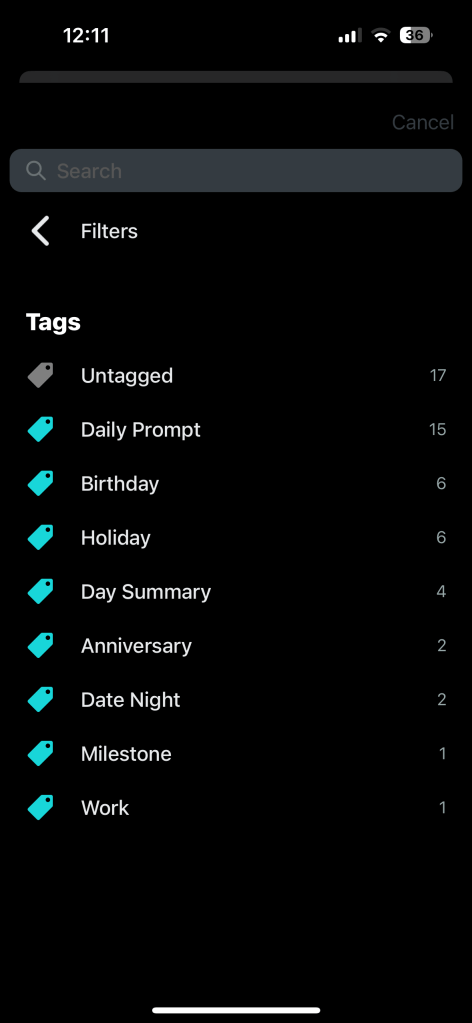
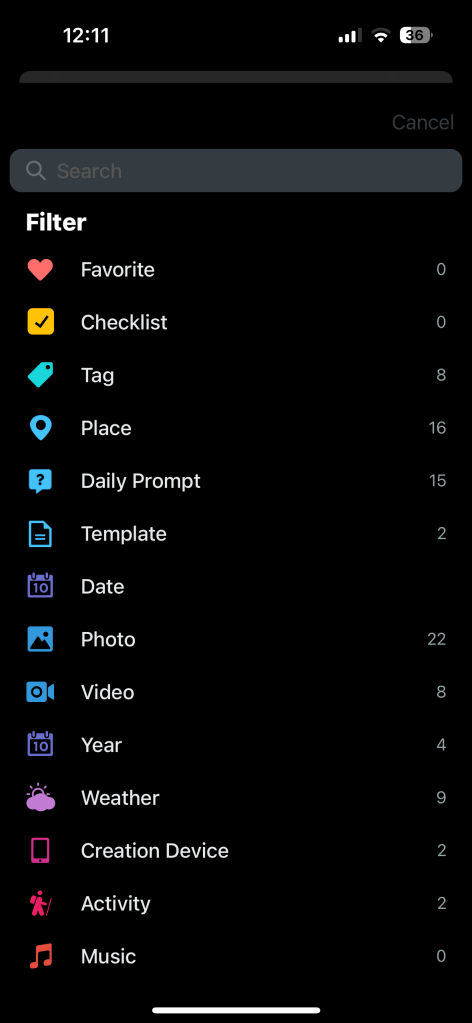
If you’re able to tag your entries right, you can create some interesting tags and hopefully memories you want to revisit in future. I added things like birthdays, milestones, anniversaries, date nights and holidays. You can even search entries by the damn weather!
On this day
One of the best things the app offers you is “On this day” where it notifies you of past moments of journal entries. It’s similar to how the iOS Photos widget works. Unfortunately, I don’t have too many entries (a year back) backfilled to enjoy this yet. Hopefully a year later.
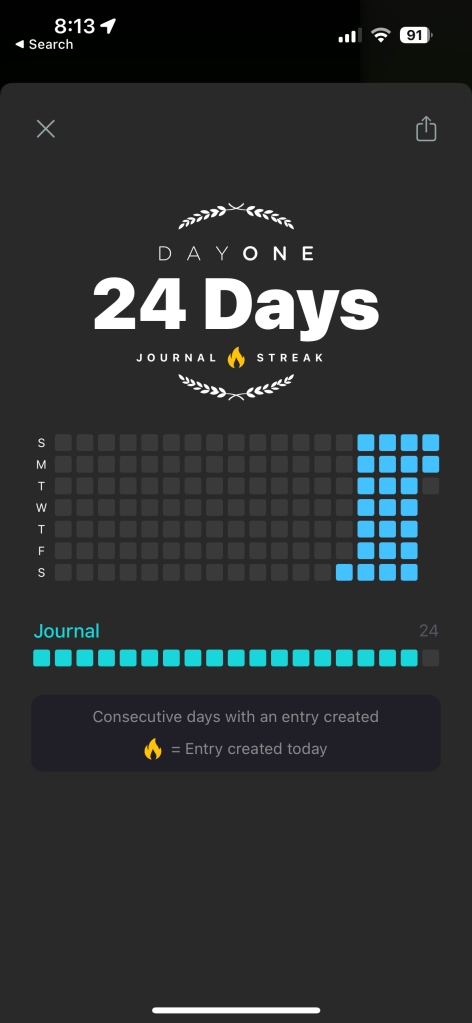
It is so satisfying to see this view. Maybe it’s this or it’s the satisfaction of writing entries but either way, I surprisingly stuck with it and recorded an entry every day since I installed the app. If you maintain multiple journals then you have the option of having multiple streaks. I switched my other two off here as I don’t do those daily.
Daily prompt

Struggle to write? Something as simple as a Day summary doesn’t motivate you? The app has daily prompts with a bunch of interesting questions or ideas. Some examples:
- How do you define success?
- What is one new thing I’d like to try?
- What is a recent accomplishment I’m proud of?
I’ve scheduled to receive two notifications- one is a general reminder to prompt, and the other is one of these interesting daily prompts. I keep the second one optional if I find the prompt interesting to write about. I’m regular with the daily prompt. One improvement here would be that instead of the daily prompt opening a blank canvas if it opened the day summary directly, I save like 730 taps a year.
Journal entries meta data
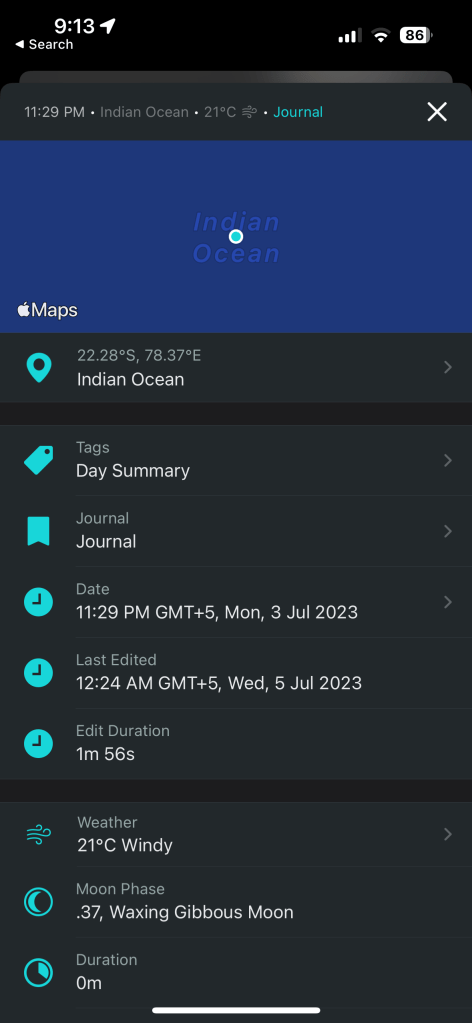
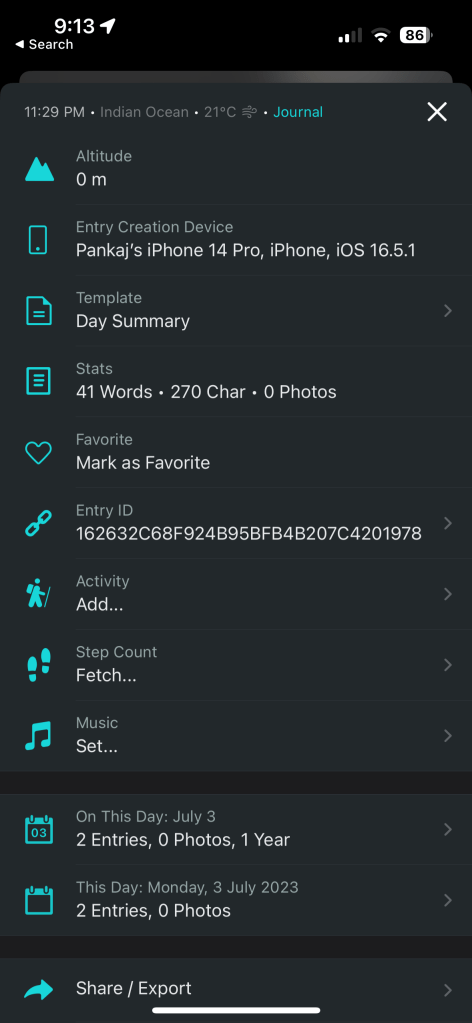
I mentioned weather earlier, so you have the option of automatically capturing location, weather, step count, music, tags, etc. One tip is to capture the time towards end of the day so your step count fits is captured correctly if you want all your steps in day summary.
Other interesting pieces:
They have an Instagram and IFTTT integration. You could capture Instagram posts directly and automatically into Day One with the integration – that’s pretty dope as it reduces updation and will fill your journal with great moments automatically. Unfortunately, I don’t use Instagram.
Lastly, you have a feature to create a “book” and either export that as a pdf or print that. You can even export your entries as CSV, JSON or zip. Although I don’t know how they’d get media in csv – haven’t tried this yet.
Verdict
The ability to go back in time when you wonder “What was I doing this day x years back?” and actually have something useful to read or look at is kinda amazing. I came across a YouTube video where a user had been digitally journaling for ten years. I find that pretty awesome. Also not having to lug around multiple physical journals, worry about safety of them or even them getting damaged. These are all problems solved by Day One and digital journaling.
The app is designed well with beautiful views of your journal entries. It offers templates for easy and clean entries. You get a couple of great features including cross-platform sync, multiple photos in entries, etc. (essentially these are the features that I want most).
I’d strongly recommend to at least try the free version of Day One and see if you can stick with it. They offer a free trial and also a free plan. Check the entire feature list here. The Day One premium sub costs ₹2869 ($34.99) for a year and it is worth it – I tried the free version and sorely missed cross-sync and multiple photos in an entry. The Day One app is available on Android, iOS, Mac and Web (Beta).
Improvements I would like to see:
- I noticed a bunch of crashes in the iOS app, it needs to be more stable. These were intermittent and don’t happen daily
- Android version had the template option not so discoverable
- How to make backfilling entries easier? Not sure about this. I easily spent 30~ mins backfilling some holidays and tagging to make the journal richer for me
If you liked the review, make sure to subscribe to the newsletter and follow me on Twitter from the button below. Feel free to ask any questions about the keyboard on Twitter.

 Pankaj Kara