In my quest for searching for decent apps on Android that can convert handwriting to text, I encountered Nebo in a couple of posts.
I recently got a tablet (Xiaomi Pad 6) with one of the main agendas being writing digital notes and then exporting them to Obsidian. This made my quest for getting an app that can convert my handwriting essential. I can’t handwrite into Obsidian directly.
One might ask: “Why do you want to handwrite instead of type?”
While Obsidian is amazing to organise my notes for my PKM (Personal Knowledge Management) it or other apps where you type notes are generally terrible at one thing – Knowledge Retention. Various studies report handwriting activates multiple regions of your brain resulting in better information recall when compared to writing (source1, source 2).
The best way is to write on paper (source) as the texture of the paper also acts as a signal for retention, but I loathe writing on paper and managing so many notebooks, so gonna use a stylus for now. Now I don’t know if this will actually work, I’ll need to give it a couple of months of practice to establish my personal opinion, but I wanted to try anyway.
There were a couple of free ways to convert my digital handwriting into text I could copy to Obsidian. For instance, capturing a screenshot of my handwriting and then convert it into text with Google Lens, then exporting the converted text to where I need it. However, as you can imagine this increases steps and also wastes time.
Samsung Notes does convert handwriting to text in the Samsung Notes app, but being on Xiaomi I didn’t have access to this. Bamboo paper, Microsoft OneNote, and Xiaomi Notes all allow handwriting but not the conversion of handwriting to text. The ecosystem of quality note-taking apps on Android is limited. Unlike iPad OS Android lacks premium tablet apps.
After not finding any great free solutions I came across Nebo. It did have the handwriting-to-text conversion feature. But they don’t even offer a trial and wanted a purchase up front. I bit the bullet and bought it.
The app has two types of files: Documents and notes. I did like how I got onboarded to the app.


It starts you off with two prefilled files with steps to get you acquainted with the app features
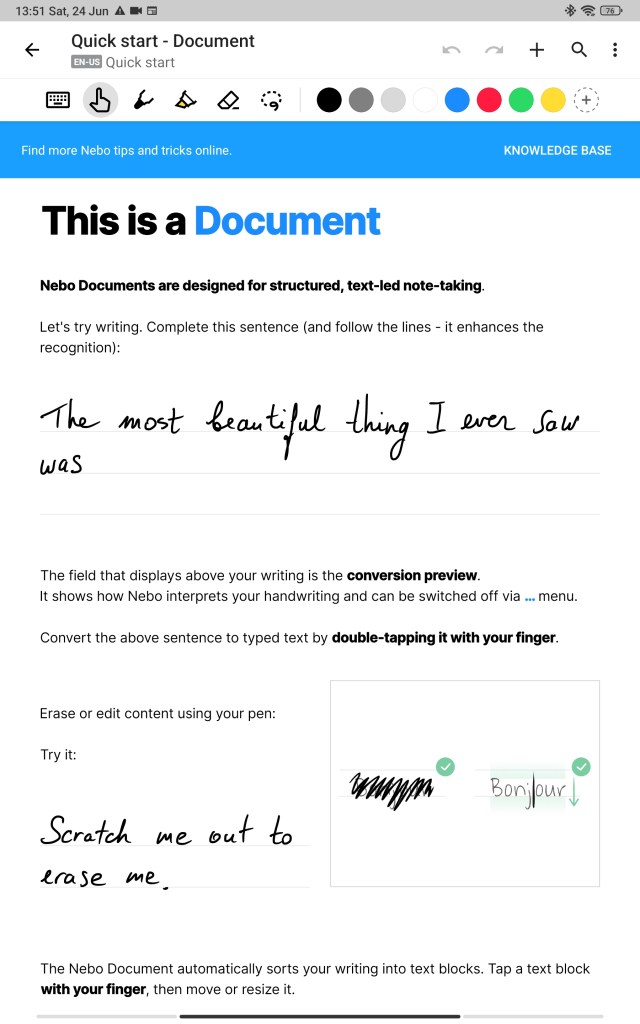

Each file guides you with how you can write and convert to text, use gestures, and explore features. By the end of it, you have some idea of how to get around on Nebo.
One of the best things is that it is smart enough to get my handwriting converted to text correctly most of the time. I might need minor edits but it’s 90%~ there. I’m still AMAZED how it recognises my world-famous garbage quality handwriting. I used the Xiaomi Smart Pen 2 with the Xiaomi Pad 6. If you’re keen to learn about the pen, check the Xiaomi Smart Pen 2 review.
I found the gestures quite easy to use. Once you have written something down, you can use the double tap gesture to convert handwriting to text. They also claim to convert your handwritten math.
It is also quite easy to make a correction. I really like the scribble to erase gesture as it makes corrections easier. In other apps I would have to find the eraser or undo button over and over again
There are other gestures such as draw line downwards, or draw line upwards that help you shift lines to their own paragraphs or bring them up to a paragraph. This was really useful as there was this slight glitch where Nebo would add some of my text to a new paragraph. I could simply draw a line upward in the earlier paragraph and then this text would be rightly positioned.
The app also allows you to highlight, move text, select between felt, brush or pen. You can change the background colors of either notes or documents.
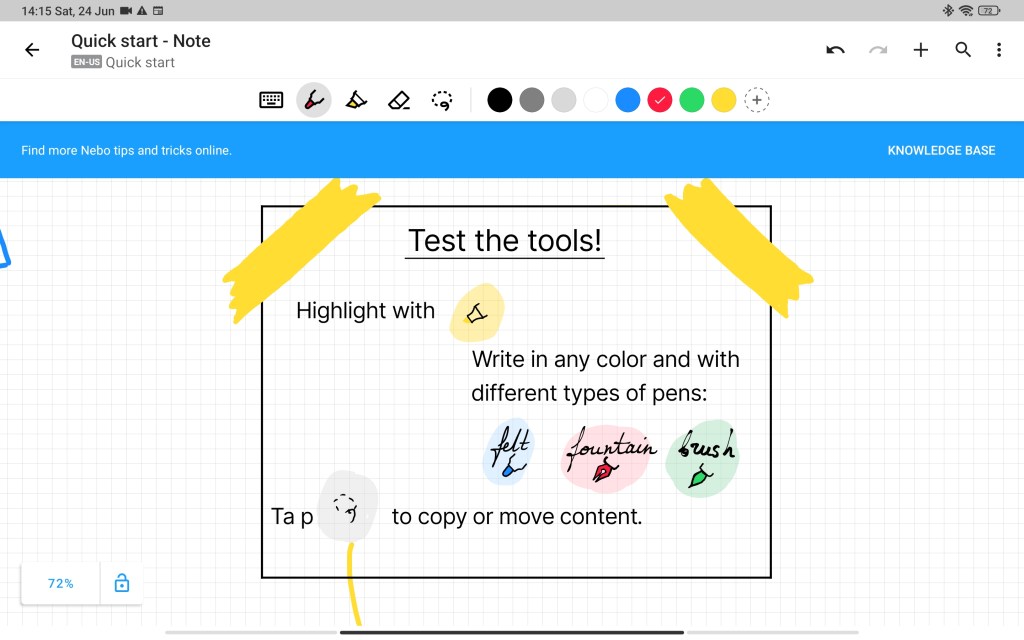
Talking about “Note” in Nebo, that is a free format canvas where you can sketch, type or draw. Some gestures from documents are available here too. What I like in particular is how it can convert your hand-drawn shapes like squares, circles, triangles and arrows into perfect shapes. Simply hold the pen after drawing your shape.
You also can import your PDF files for annotation in Nebo. You can export your Note files as PNG, PDF, SVG or Nebo. The document files can be converted to text, PDF, .docx or Nebo. The app also supports syncing files to the cloud in case you want to access Nebo on multiple devices. Note: You need to separately purchase Nebo on each platform like iOS, Android, Windows. The iOS version of the app is usable on Mac OS with Mx chips. I tried the iOS on my M1 MacBook Air and purchased it to enable my digital handwriting -> digital text -> obsidian PKM workflow. Will cover more at the bottom if you’re interested.
Verdict
At $11.99 or ₹890, I definitely think this is value for money for an Android note-taking application that has handwriting conversion.
Coming to the app itself, its ability to recognise my handwriting is godlike. I have friends and family who generally struggle with reading my handwriting but this app does about 90%~ of that accurately and that is just fascinating. And I’m writing worse on screen compared to paper. One thing to point out is there was an intermittent glitch where it would add space before my handwritten content. This can be addressed with backspace when you convert it to text, but worth mentioning.
If you purchase Nebo on Android, you still need to purchase it separately for other platforms. This impacts you if you want to cross sync between devices or platforms. You can sync your notes on Dropbox, Google Drive or iCloud.
I’m yet to try some of the popular handwriting-to-text converting apps on iPad OS and but when I do I’ll definitely be comparing them against Nebo. It is highly rated in iPad OS as well.
I recently started using the freeform app on my MacBook Air and this is a similar type of use case albeit with handwriting support for Android. I definitely plan to use this for some of my upcoming work tasks. I could recommend this as a Freeform Android equivalent or a note alternative for Android. Especially if you need that handwriting-to-text conversion.
The product manager in me did appreciate the cold start onboarding documents and tutorials to get the users familiar with the app, gestures, file types, etc. However, they could have easily offered a trial and then allowed the user to make the purchase. What I do appreciate is that this is a one-time purchase and not a recurring subscription. I can see from their blog that they’ve not applied this pricing model to their iPad variant- they’re offering a free trial there but probably cuz they face tough competition from native iPad OS apps like Notes or Freeform.
Here’s a link to their website in case you’re keen to check out either iPad OS, Android or Microsoft apps.
This is how my workflow is with written notes to digital:
1) Capture notes in handwritten format with a stylus on the tablet. Convert to text.
2) Open iOS Nebo in MacBook.
3) Export in text format.
4) Paste in Obsidian.
Let me know in the comments or on twitter if you have any questions on this app, will be happy to reply. Hope you enjoyed this review.

 Pankaj Kara